How to Convert HEIC to JPG
Your iPhone saves photos as HEIC to save space, but a lot of websites, apps and Windows PCs cannot open them. Here is how to convert HEIC to JPG for free, right in your browser, with nothing uploaded.
This page is about converting to a JPG you can use anywhere. For what the format is and why Apple uses it, see what is a HEIC file. To view HEIC on a PC without converting, see how to open HEIC files on Windows.
What is a HEIC file?
HEIC (High Efficiency Image Container) is the format iPhones and iPads use by default to save photos at a smaller file size. The trade-off is compatibility: many websites, upload forms, Windows programs and older apps cannot open a .heic file, which is why people convert HEIC to JPG, the format that works everywhere.
How to convert HEIC to JPG for free
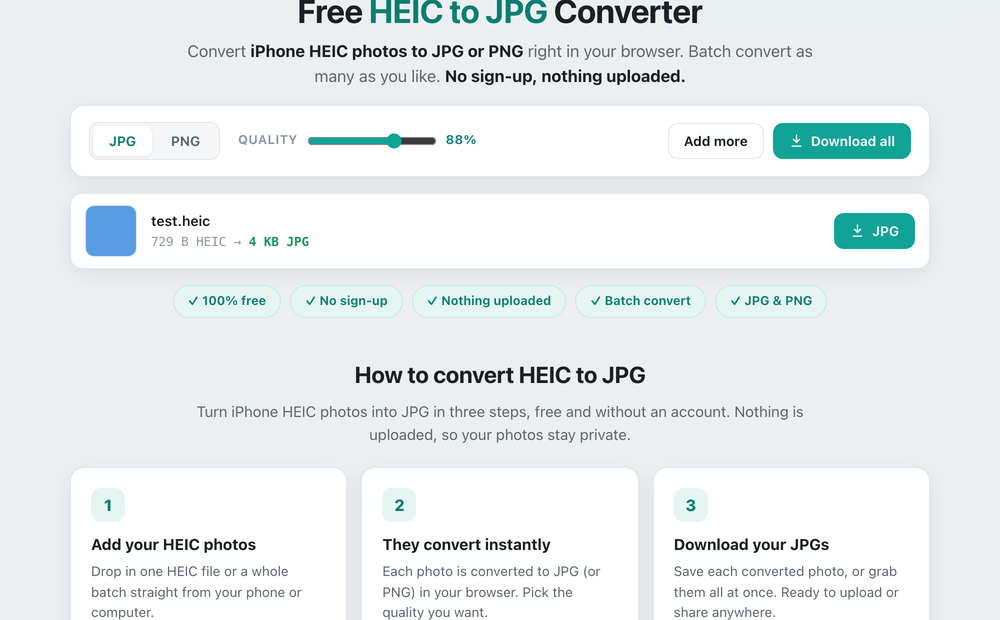
- Open the free HEIC to JPG converter and drop in your HEIC photos, one or a whole batch.
- Each photo is converted to JPG right in your browser. You can pick the quality or choose PNG instead.
- Download each JPG, or grab them all at once. Nothing is uploaded, so your photos stay private.
Convert iPhone photos on your phone
Because it runs in the browser, you can convert HEIC to JPG on your iPhone or Android without installing an app. Open the converter in your mobile browser, pick the HEIC photos from your camera roll, and download the JPGs straight to your phone.
Are my photos uploaded?
No. Unlike many converters that send your photos to a server, this one does everything on your device. Your images are never uploaded, which matters for personal photos. Close the tab and nothing is left behind.
HEIC to JPG or HEIC to PNG?
For most photos, JPG is the best choice: it is small and opens everywhere. Choose PNG if you need a lossless copy or the image has sharp graphics. After converting, you can compress the JPG to make it even smaller for uploads.
Convert HEIC to JPG now
Turn iPhone HEIC photos into JPG or PNG in your browser. Free, no sign-up, nothing uploaded.
Open the HEIC to JPG Converter →