How to Compress an Image Without Losing Quality
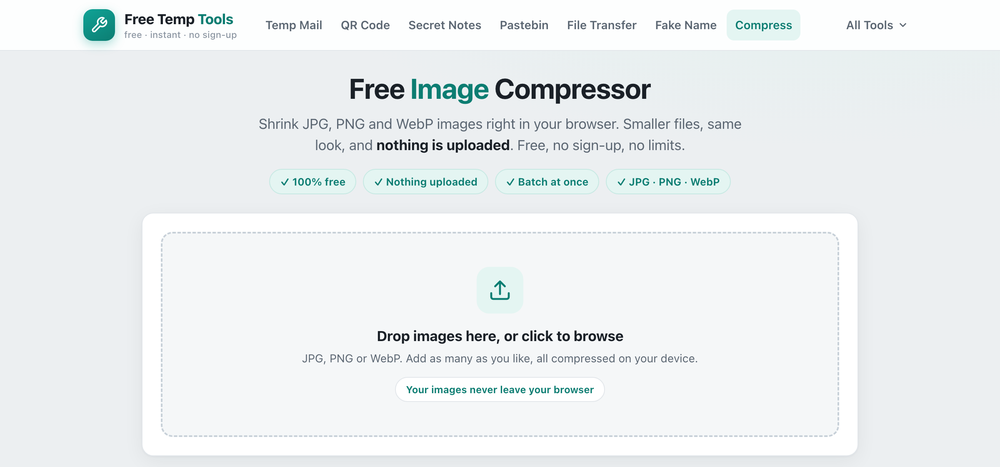
Big images slow down websites and get rejected by upload forms. Here is how to compress an image and reduce its file size without losing quality, all in your browser.
This page focuses on keeping quality while the file gets smaller. If you just need to get under a specific email or upload limit, see how to reduce image file size.
Why compress an image?
Smaller images load faster, fit within upload limits, and use less storage. A single phone photo can be several megabytes, and compressing it can reduce the file size by 70% or more with no visible difference. It is the quickest way to reduce a photo file size before emailing or uploading it.
How to compress an image
- Drop in your JPG, PNG or WebP files, one or a whole batch.
- Set the quality and, if you want, a maximum width to resize the image as well.
- Download the smaller files. Everything runs on your device and nothing is uploaded.
Compress without losing quality
Around 70 to 80% quality is usually indistinguishable from the original while cutting the size a lot. To compress a photo without losing quality, keep the quality high and reduce the dimensions instead. For the very smallest file, convert it to WebP.
JPG vs PNG vs WebP
- Compress JPG for photos, where the quality slider does most of the work.
- Compress PNG by resizing or converting it, since PNG is lossless and the quality slider does not apply.
- Convert to WebP for the smallest web files at the same quality.
It is a free, browser-based image optimizer to compress images online free, with no sign-up and nothing ever uploaded.
Compress an image now
Shrink JPG, PNG and WebP in your browser. Nothing uploaded, no limits.
Open Image Compressor →